
Overview #
WhatsApp Messenger for Zoho CRM puts a WhatsApp conversation on every Lead, Contact, Account and Deal. Every message you send or receive is saved in CRM, so the whole team sees the same history. Your administrator connects the WhatsApp numbers once (see the Admin Guide); after that you only need this page.
Quick start: open a record → click Chat in the related list → pick your number in From → type → press Enter.
1. Open the chat on a record #
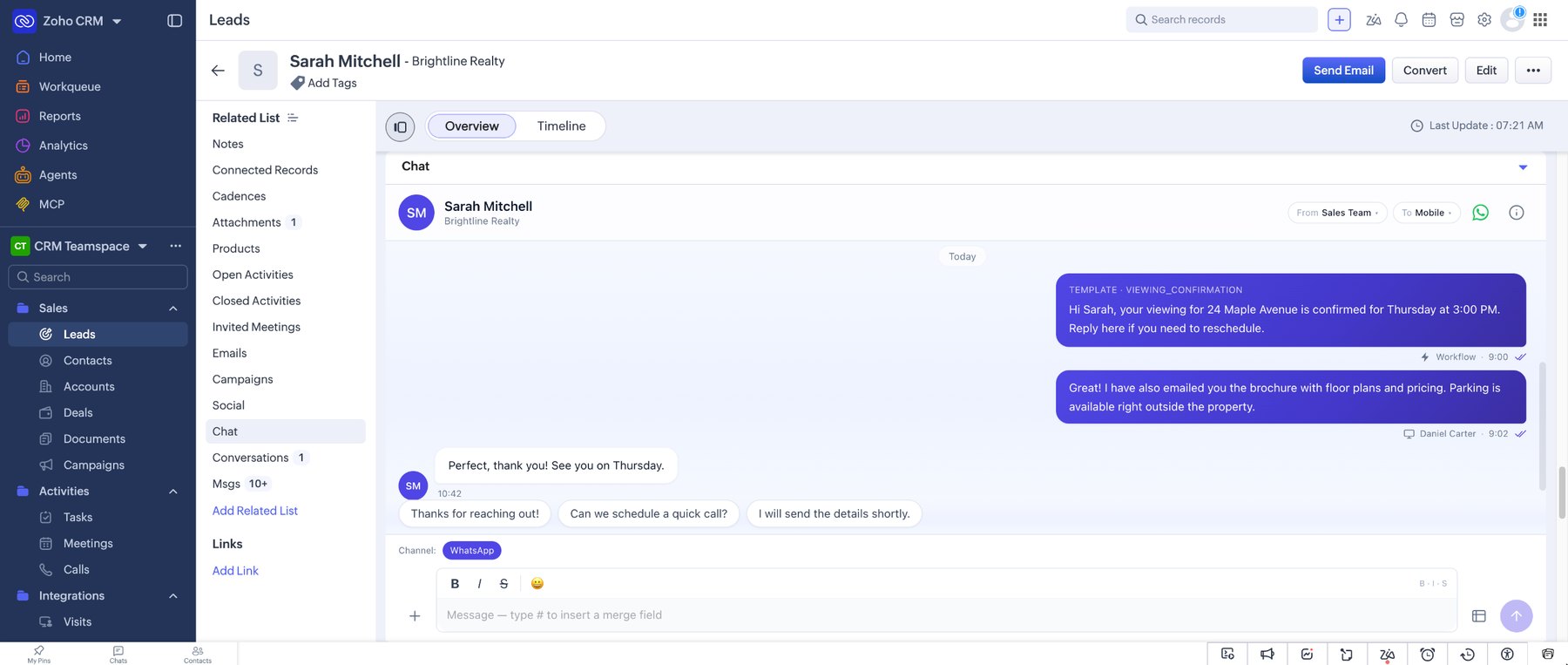
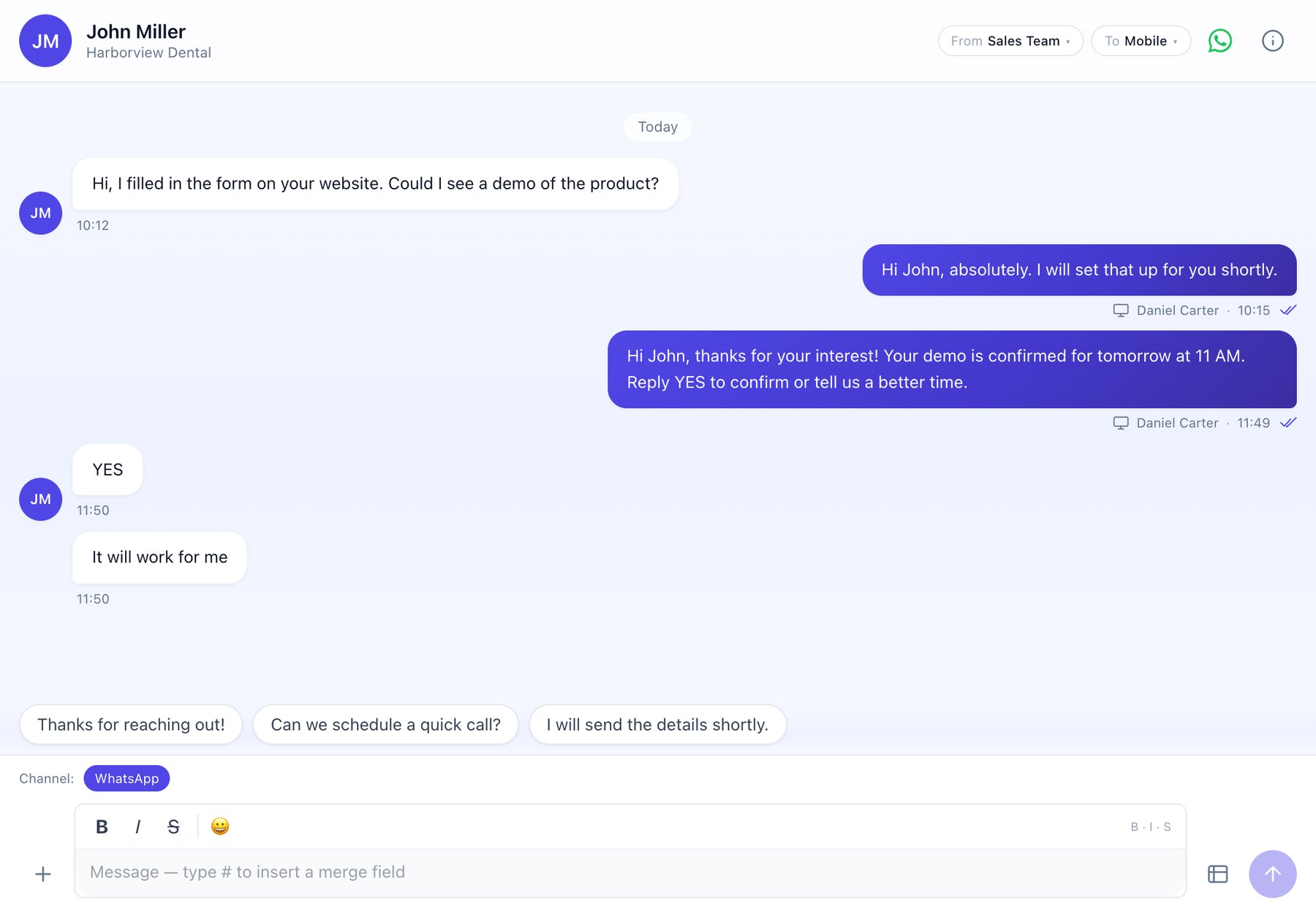
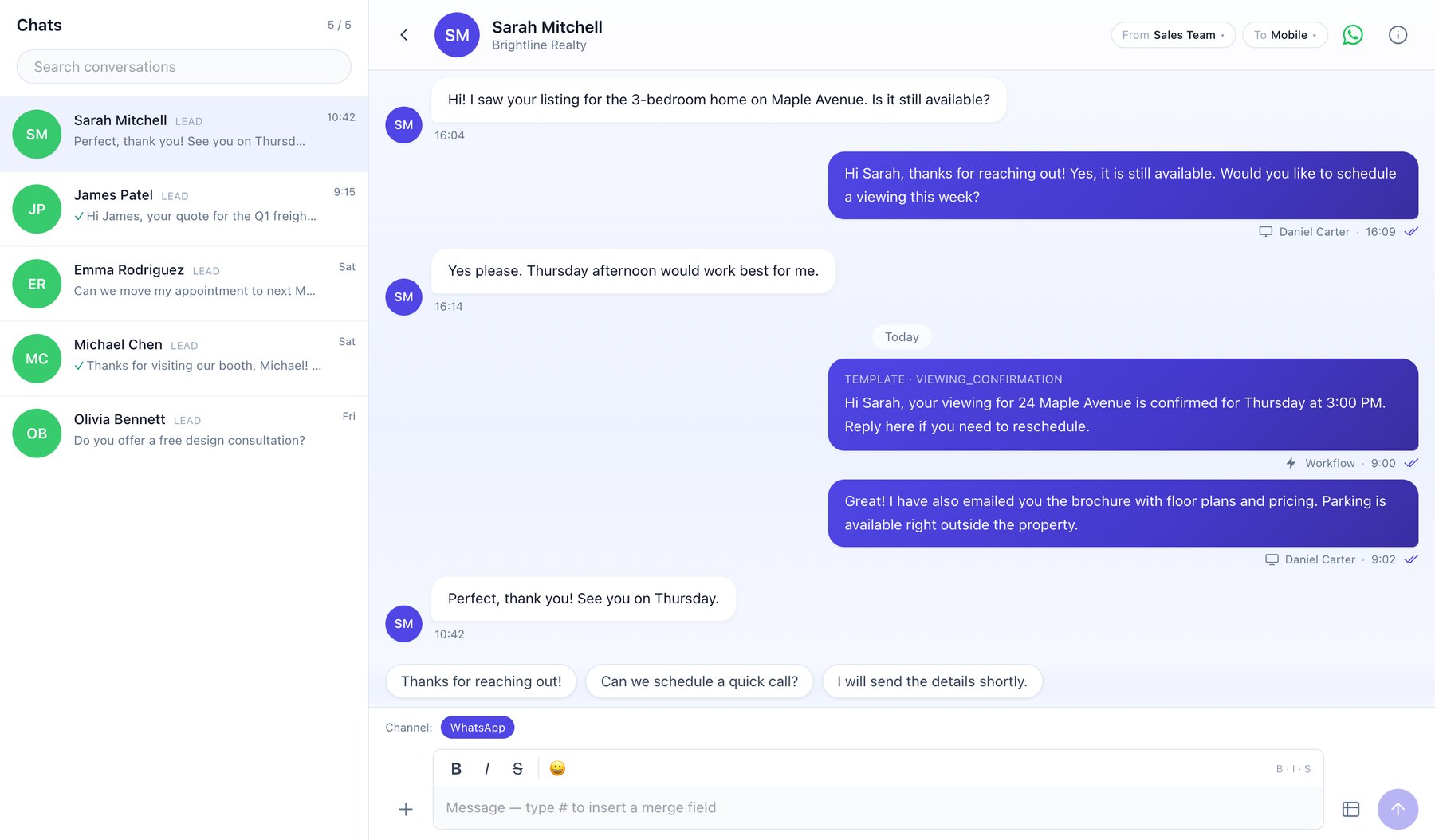
Any record → Related List → ChatOpen a Lead, Contact, Account or Deal and click Chat in the related list. The full WhatsApp conversation with that customer opens.
2. Choose From and To #
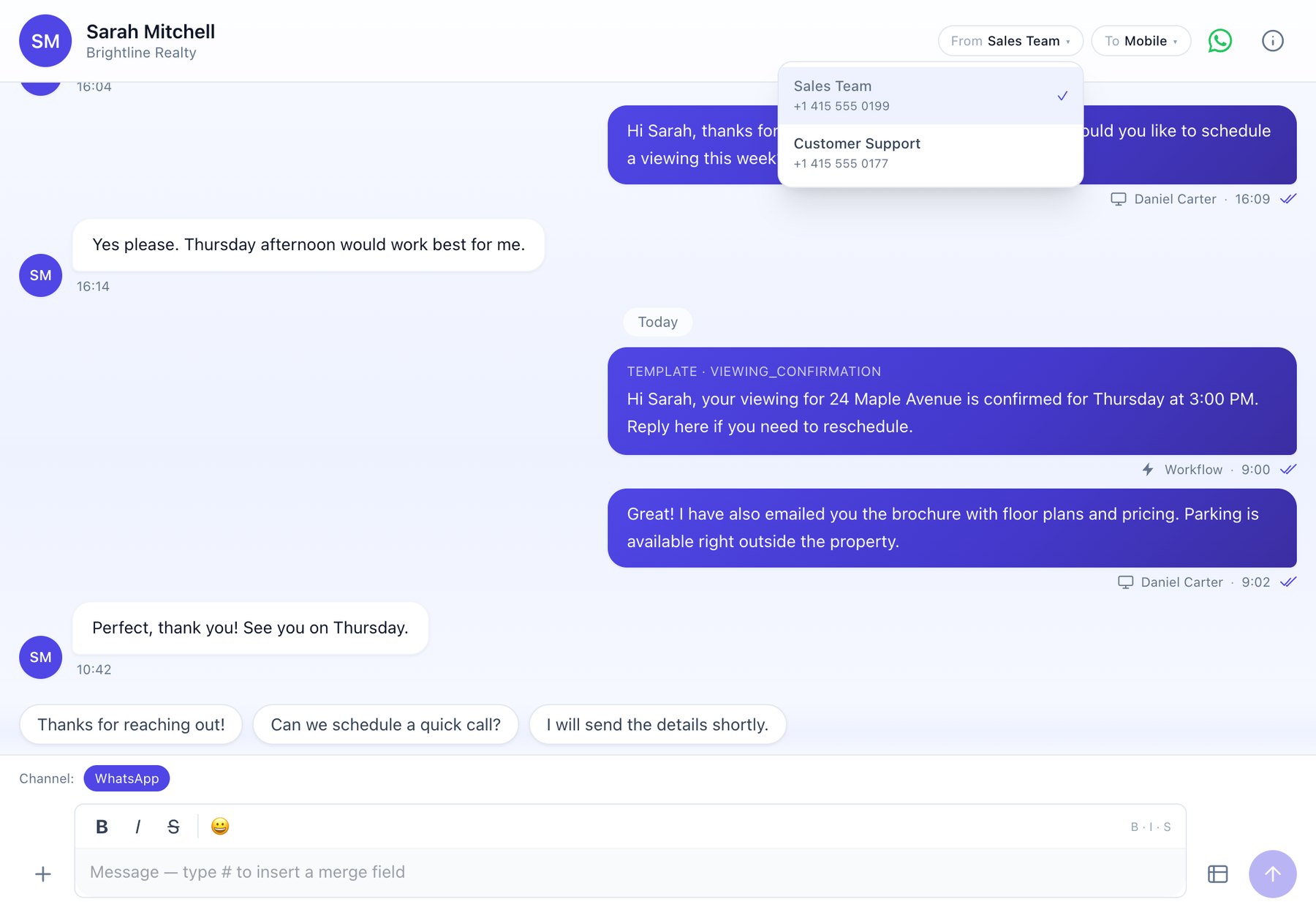
- From is the company WhatsApp number that sends the message. Only numbers marked Active by your admin are listed.
- To is the phone field on the record that receives it (for example Mobile). On Accounts and Deals, click the name to pick a related contact.
3. Write and send #
- Type in the message box. Enter sends, Shift+Enter adds a new line.
- Use B, I and
Sfor bold, italic and strikethrough, and the smiley for emoji. - The + button attaches an image or document (up to 20 MB). Your text becomes the caption.
- Quick-reply chips above the box fill in a saved reply. They never send on their own.
- Hover a message and click reply to quote it.
4. Insert merge fields with # #
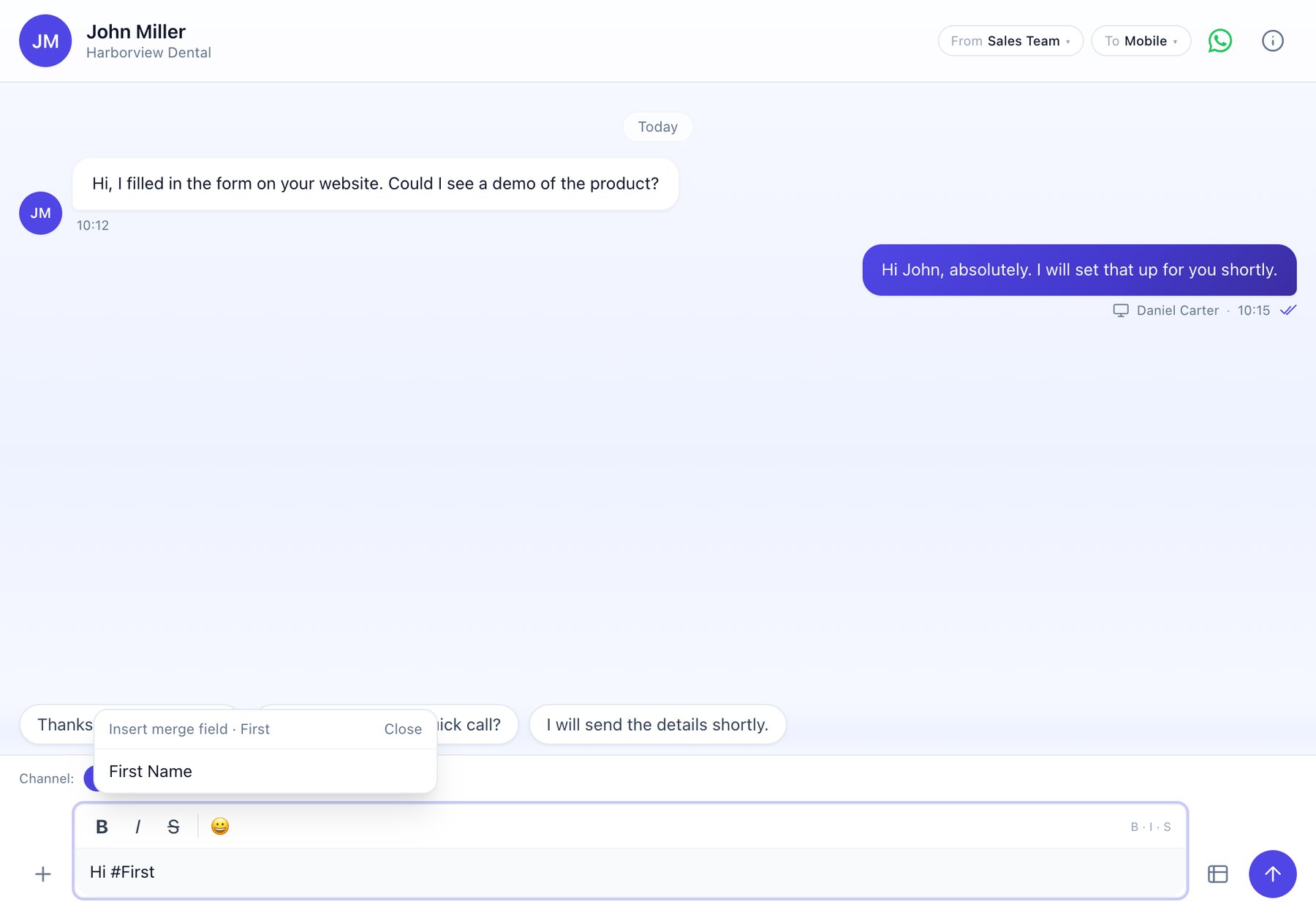
Type # and start typing a field name, for example #First. Pick the field and it is filled in from the record when the message is sent. Fields marked › open a linked record, such as the Account. Esc closes the list.
5. The 24-hour window #
WhatsApp lets a business send any free-form message for 24 hours after the customer's last message. Outside that window you can only send a template that Meta has approved. The chat warns you when the window is closed and opens the template picker. When the customer replies, the window opens again.
6. Use templates #
Chat → Templates (next to Send)- Meta templates are approved by WhatsApp and reach anyone, any time. Pending ones are greyed out until approved.
- CRM templates need no approval and can be edited before sending, but only reach people inside the 24-hour window.
- Variables in a template are filled from the record automatically. Media templates send their header image, video or document.
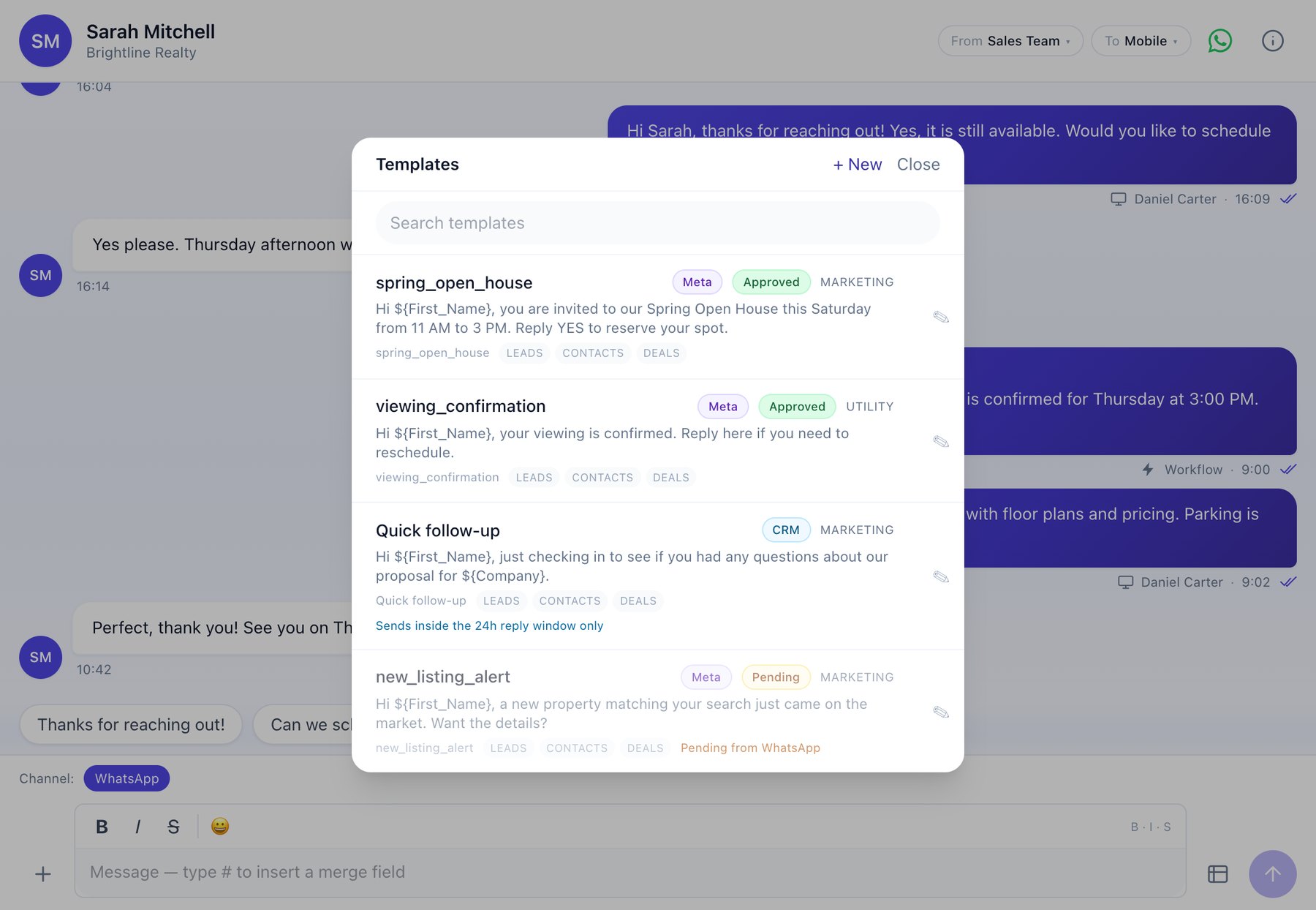
To create a new template, click + New. Creating and approving Meta templates is covered in the Admin Guide.
7. Delivery ticks and failures #
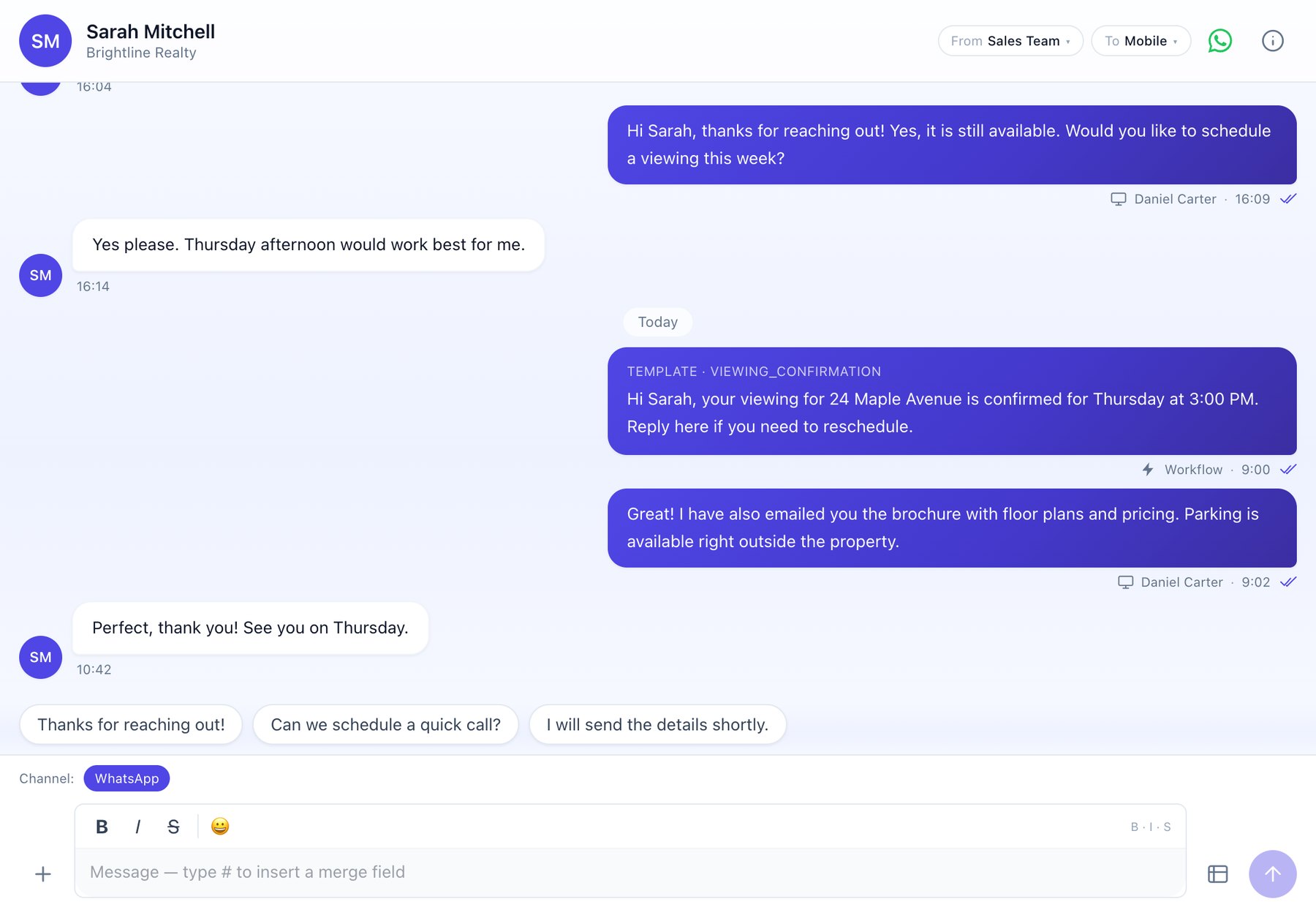
Under each message you see where it came from (Zoho CRM, Workflow or the phone app), the time and the ticks: one grey tick for sent, two for delivered, two blue ticks for read. A red Failed badge means WhatsApp refused the message; click it to see the reason. Common reasons are listed in Help.
8. Comm Hub Inbox #
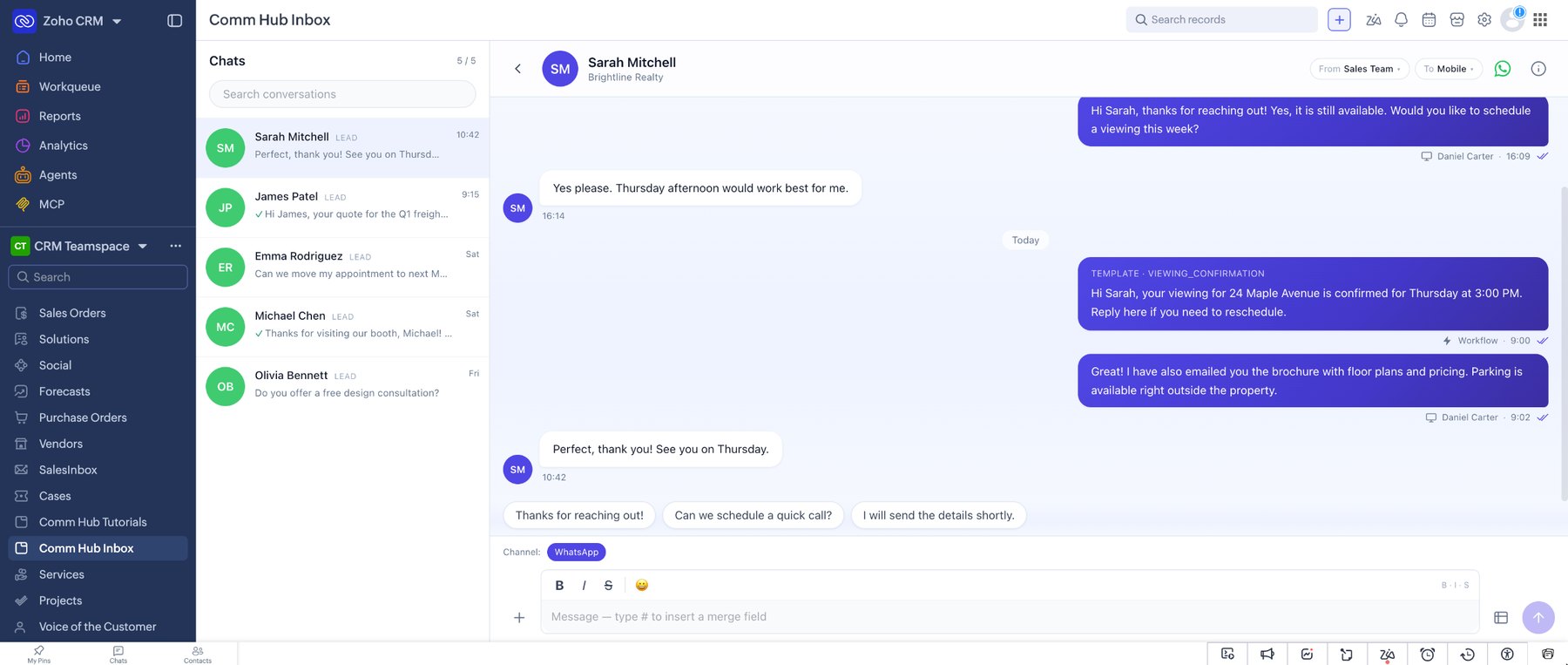
CRM menu → Comm Hub InboxThe Inbox tab shows every WhatsApp conversation in one place, newest first, so you can reply without opening each record. Each row shows the customer, the record type and the last message. Use Search conversations to filter by name or text. The right side is the same chat you get on a record.
9. Mass Send #
List view → tick records → Mass Send WhatsApp SMS- In a Leads, Contacts, Accounts or Deals list view, tick the records to message.
- Click Mass Send WhatsApp SMS.
- Pick the From number, then a template or your own text. Merge fields are filled separately for each record.
- Check the attachment (the template's file is pre-filled; Replace sends a different file to everyone), then click Send to N.
- A progress bar shows sent and failed counts, with the reason for each failure. Opted-out records are skipped.
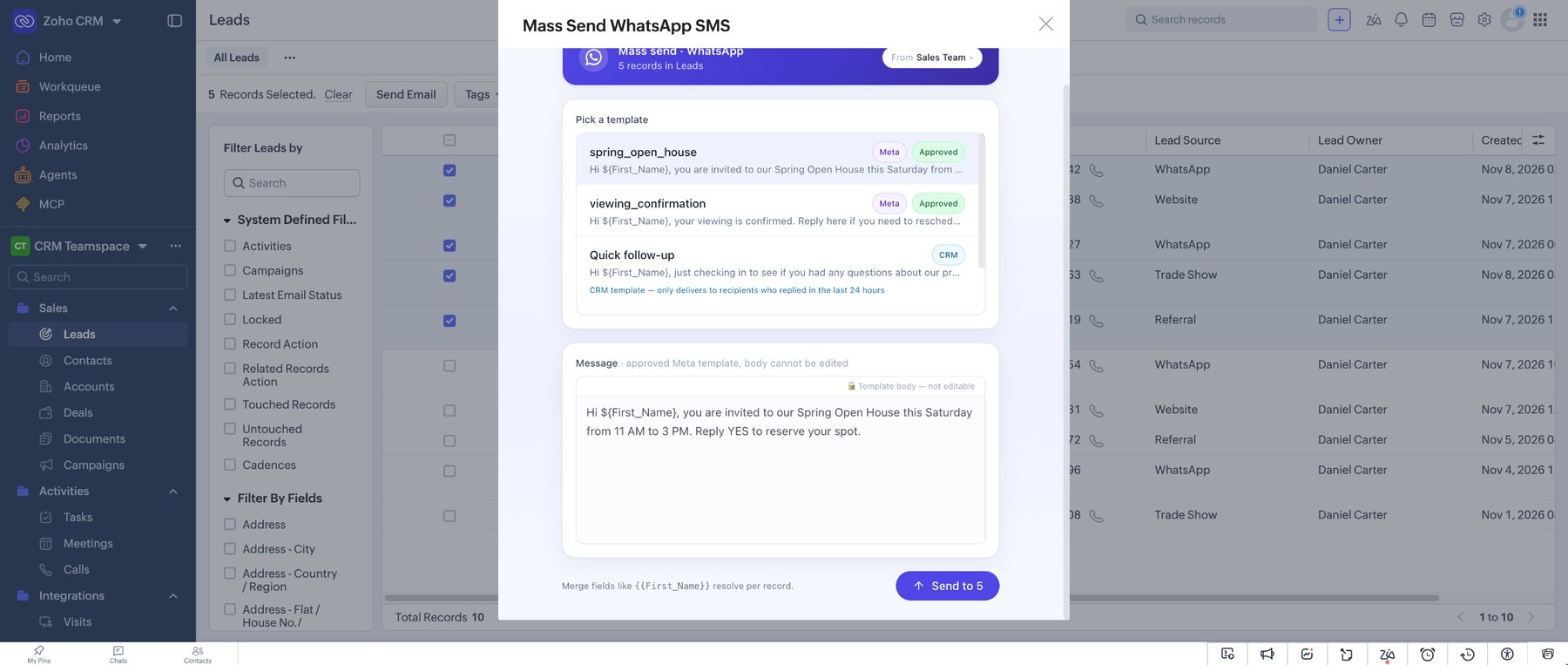
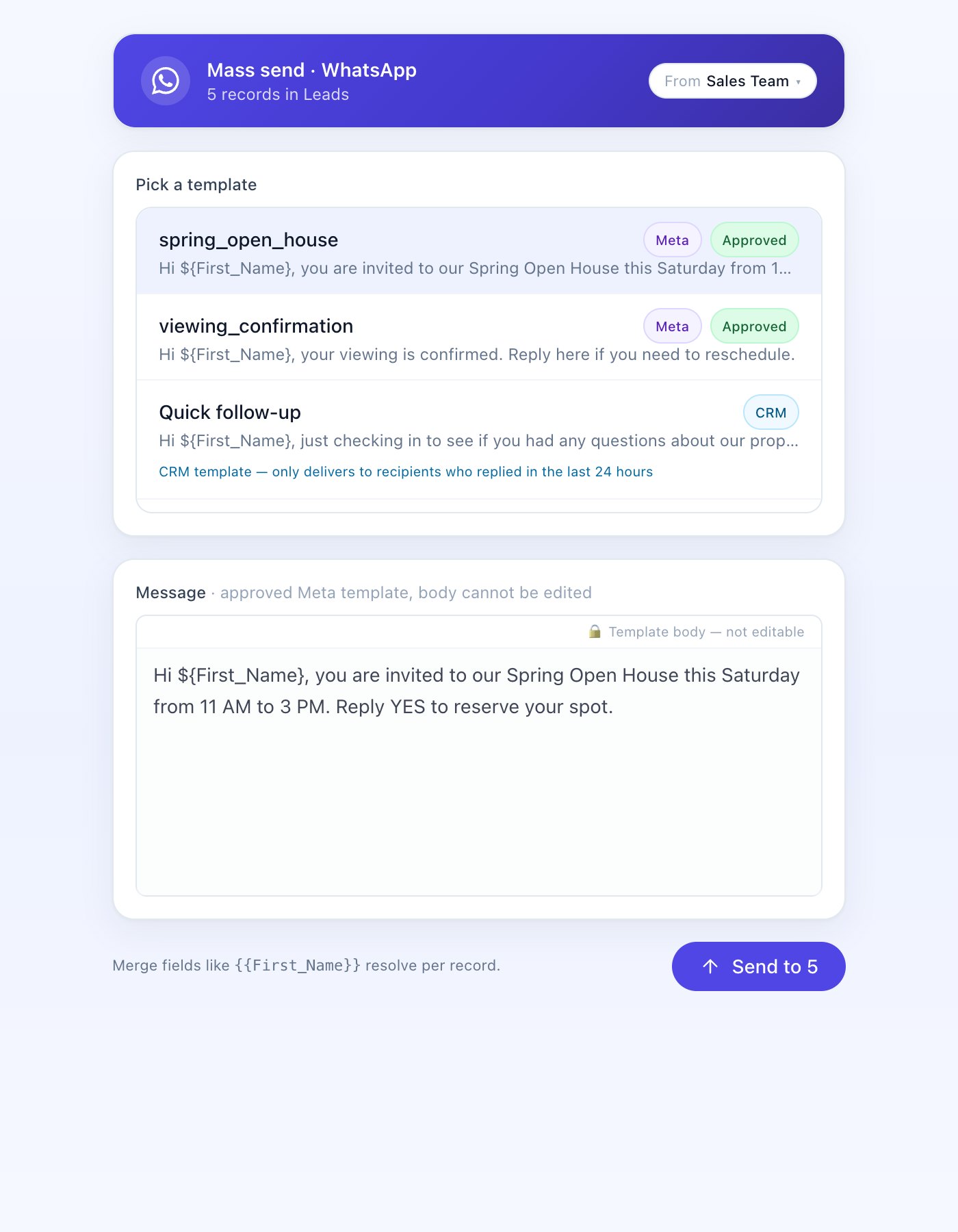
For people who have not messaged you in the last 24 hours, always use an approved Meta template.
10. Automated messages #
Your admin can set up Workflow Rules that send WhatsApp messages automatically, such as a welcome message for new Leads or appointment reminders. These appear in the chat with Workflow under the bubble. Customer replies come back to the same record.
11. Opt-outs #
If a customer replies with an opt-out word such as STOP, their WhatsApp consent is set to Opted Out and sending to them is blocked. If they reply START, they are opted back in. Respect opt-outs; see our Acceptable Use policy.
Questions? See Help & FAQ or email contact@aioautomations.com.